Ask For The Details Up Front
Add a form to any inbox: project ID, department, matter number, whatever the workflow needs. The visitor fills it in before they upload, so the file arrives already labeled instead of as a mystery you sort out later.
A Files.com inbox is a branded upload page, or an email address, that lets people outside your company send you files without ever signing up for anything. Every upload lands in the folder you choose, sorted by the details you asked for, and starts the next step in your workflow on its own. One standing front door for everything that comes to you.
When you need documents from a client, paperwork from a new vendor, or files from an applicant, the default is email. Email is where it goes wrong. Attachments get stuck behind size limits, land in the wrong person’s mailbox, sit in a thread no one can find, and arrive named "scan-final-2.pdf" with no idea which project they belong to.
An inbox replaces all of that with one branded page or one email address. The sender drops their files. Each one lands in the right folder, tagged with the project it belongs to. No one downloads attachments and files them by hand, and nothing gets lost in a mailbox.
Inboxes are how teams collect documents from clients, patients, and vendors without creating accounts and how support organizations take diagnostics and backups into open cases.
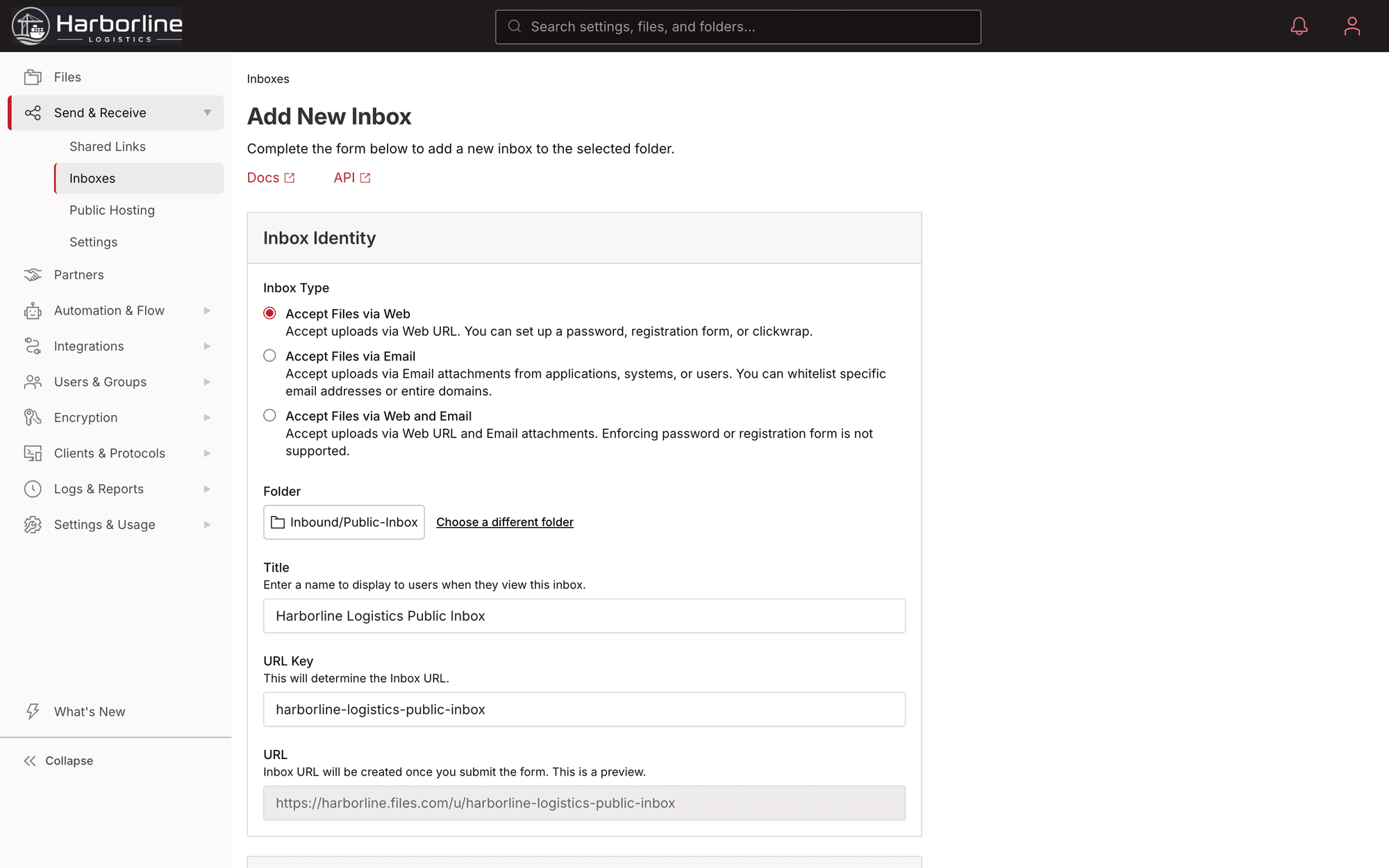
Give people the path that fits them: a page to drop files on, an address to email, or a form built into a site they already use.
Send people a link to a drag-and-drop page under your own domain. They drop files, hit submit, and they’re done. No account, no signup. Each person only ever sees their own upload, never anyone else’s.
Give an inbox its own email address. Anyone who emails attachments to it has those files land straight in the folder. That suits partners who’d rather just hit reply than open a web page.
Drop the upload form directly into your website, intranet, or partner portal, so the file exchange happens inside your product, not on a page that looks like someone else’s.
Add a form to any inbox: project ID, department, matter number, whatever the workflow needs. The visitor fills it in before they upload, so the file arrives already labeled instead of as a mystery you sort out later.
Use the form answers to build the folder path, so submissions land at predictable spots like /Applicants/Name/Date on their own. No one moves files around by hand.
Scanners, cameras, and lab equipment can email or push files into an inbox with no person in the loop. Each arrival starts the same workflow a human upload would.
The moment a file lands, your automations fire: a Slack alert, a webhook, a copy to S3 or Azure, a hand-off to your ERP or HR system. Submissions arrive, and the system takes it from there.
An inbox takes files in; a share link sends files out. Put them together and a single branded URL carries a full two-way exchange. The outside party downloads what you sent and uploads their response through the same page. It’s the pattern behind an RFP, a vendor onboarding, or a client intake, with no separate tools to wire together.
Both run under your brand on storage you control, and both feed the same audit log. The partner sees one clean portal; you get governed intake and delivery in one place.
Some files never arrive as a proper transfer. Customers use the email inbox to pull them into the same pipeline anyway.
A legacy application or a vendor sends its nightly report as an attachment to an inbox address, and the attachment is a file in a governed folder before anyone reads the message. The mailbox rules and the person saving attachments go away.
Branch copiers scan to an inbox and the fax server drops page images into a folder named for the receiving number, so paper enters the same automations as everything else, routed by folder to the downstream system.
File-delivery monitoring on the inbox flags the day a client’s emailed file did not come, and the inbound email log shows what did, so an emailed channel carries the same accountability as an SFTP feed. A missing attachment finally makes noise.
The Agent carries inbox arrivals to a Windows share or on-premises server over an outbound-only connection, so e-signed contracts and AP documents file themselves where the old process kept them, with the firewall unchanged.
What teams ask about collecting files from outside people, sorting what arrives, and keeping every submission on the record.
The person uploading never needs a Files.com account. An inbox is built for a client, a vendor, or an applicant who doesn’t have one and never will. They open a branded page, drop their files, and submit. No signup, no login, and they never see anyone else’s uploads.
A Files.com share link sends files out and is usually temporary. An inbox takes files in and is permanent: a fixed URL and optional email address that can run for years. Pair an inbox with an outbound share link and one branded portal handles both directions of secure file sharing.
A Files.com inbox works as a standing file request: send the link, and the other person uploads without creating an account. Unlike a one-off file request, an inbox stays open for as long as you leave it up. It collects the details you need through a custom form and starts an automation with every arrival.
Files.com places no cap on the number of inboxes you create. Spin up one per workflow, per partner, per department, or per campaign, so submissions stay sorted from the moment they arrive instead of piling into one shared bucket.
Files.com Custom Forms collect the fields you choose (short answers, dates, dropdowns, multiple choice) before a visitor can upload. The answers can route the file into the right folder and start an automation, so the form actually kicks off the work. Custom Forms are included on every plan.
Each Files.com inbox can enforce allowed file extensions, filename patterns, and length rules. Its email address can accept mail only from an allowlist of sending domains. Set the controls per inbox, from the web UI, the API, the CLI, or Terraform, so one strict partner intake and one open public form can run side by side.
Inbox pages, embedded forms, and email receipts all render under your own domain with your logo, colors, and copy through Files.com custom branding. The custom-domain branding for those pages is on Power and above.
Every upload, every email arrival, and every form submission lands in the Files.com audit log. On Enterprise plans the log streams in real time to your SIEM: Splunk, Microsoft Sentinel, Datadog, and more. You always know what came in, from whom, and when.
Give a Files.com inbox its own email address and send, or forward, the messages there. Each attachment becomes a file in the inbox’s folder, reachable over SFTP and every other protocol, and an automation can rename it, route it by sender or subject, and hand it to the system that processes it. Allowed sending domains keep strangers out.
Route the inbox folder through the Files.com Agent. It makes an outbound-only connection from inside your network and writes each arriving attachment to the share or server path you choose, so nothing inbound is opened and the documents land where the existing process expects them.
Yes. Point the copier’s scan-to-SFTP or scan-to-FTP destination at your Files.com site with a credential scoped to one folder, and scans arrive as files that automations route to a processing vendor or an on-premises system, so scan-to-file keeps working after the file server is retired.
Start a 7-day free trial, point an inbox at a folder, and send the link. The next file you need from a client or vendor arrives sorted, labeled, and ready for the next step.
No credit card required • Free for 7 days • Live in minutes
Collect paperwork from outsiders through a branded page, no accounts, every submission private.
Diagnostics and backups from customers into per-case folders; fixes back the same way.
Get alerted the moment something happens — webhooks, Slack, Teams.